> For the complete documentation index, see [llms.txt](https://docs.graphite-note.com/graphite-note-documentation/llms.txt). Markdown versions of documentation pages are available by appending `.md` to page URLs; this page is available as [Markdown](https://docs.graphite-note.com/graphite-note-documentation/datasets/data-sources/ms-sql-connector.md).
# MS SQL Connector
**Overview**
The MS SQL connector in Graphite Note allows you to import your data from a MS SQL or run custom SQL queries directly within the platform.
**Prerequisites**
Before starting, ensure your firewall allows incoming requests from the following IP address:
* 99.81.63.220
**Steps to Import Data**
**1. Create a New Dataset**
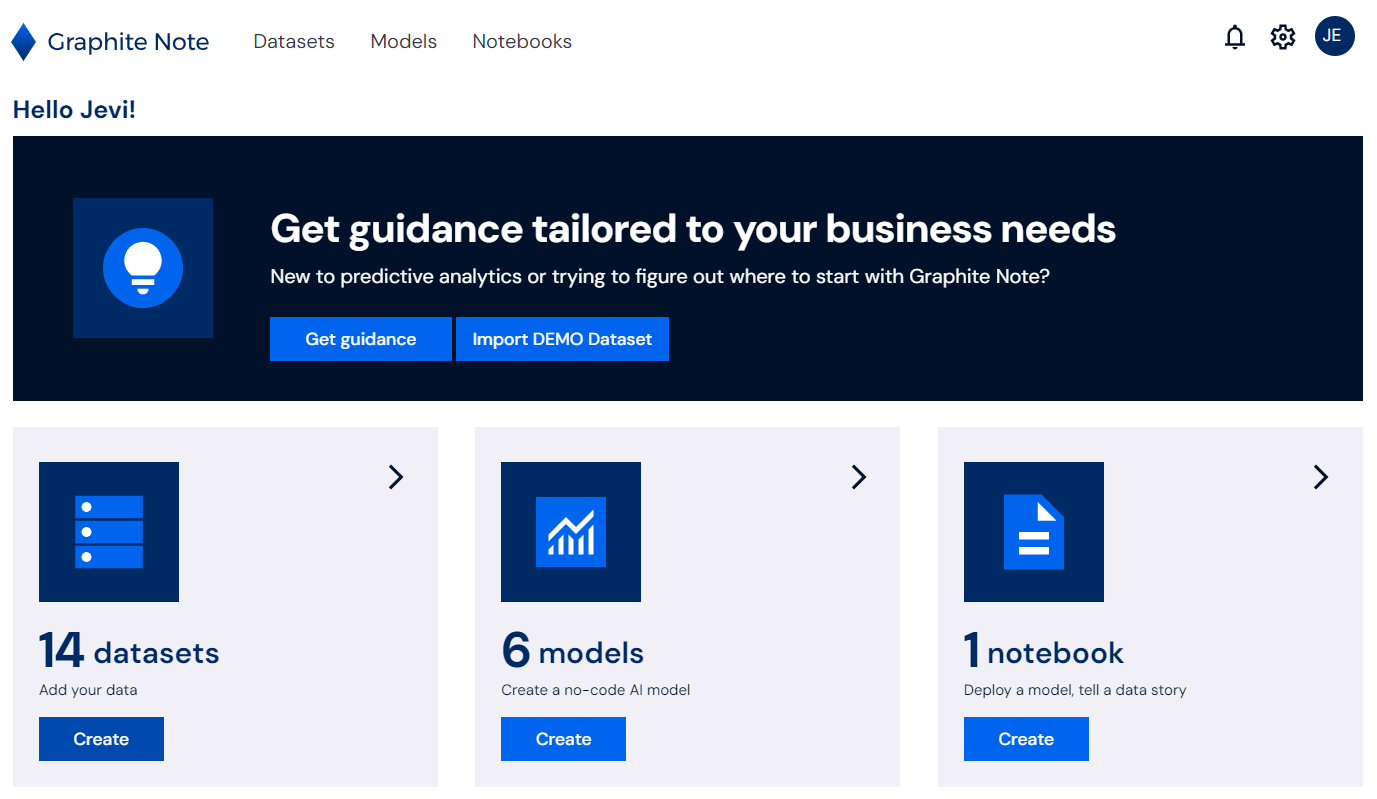
* Option 1: Go to the homepage and click on "Create" under Datasets.
* Option 2: From the datasets list, click on "New Dataset."
Option 1: Create Dataset using homepage
Option 2: Create Dataset from the Dataset List page
**2. Select MS SQL**
* Choose "MS SQL" as your dataset source and click "Next".
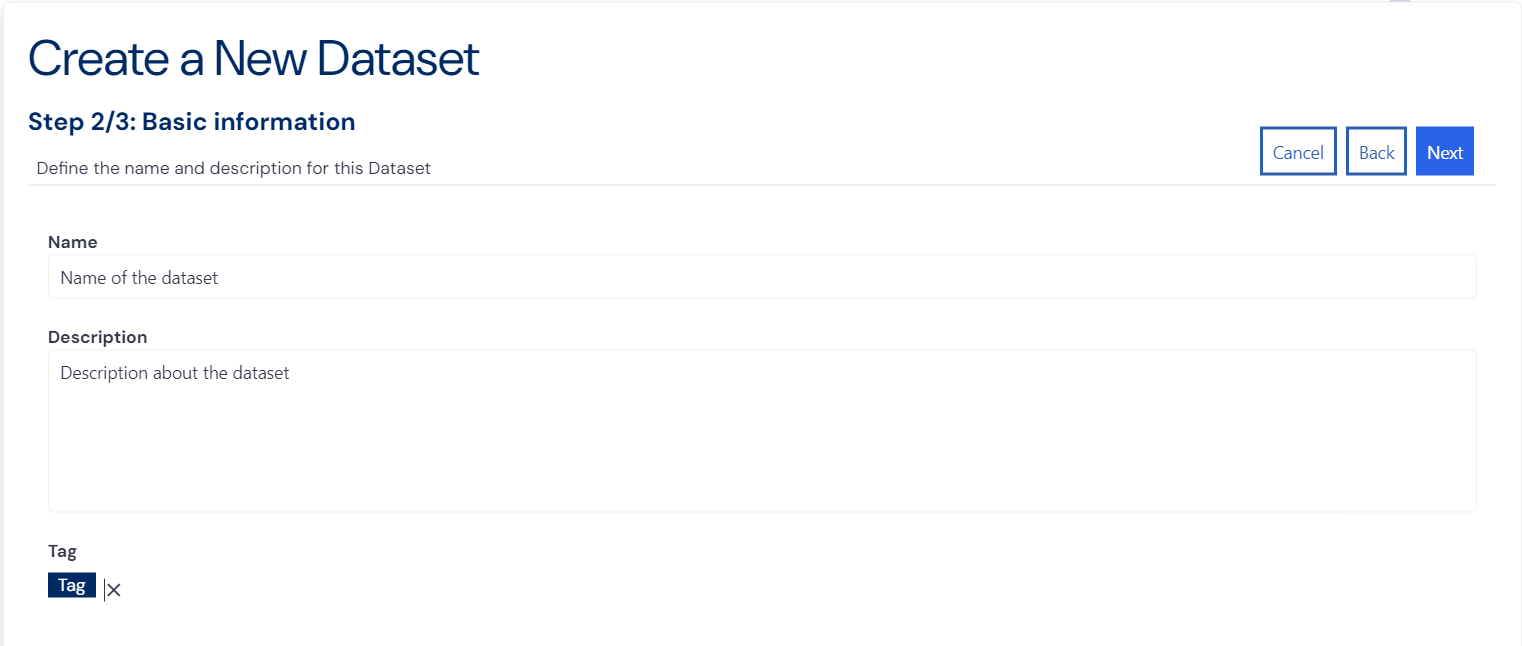
**3. Enter Dataset Information**
* Name: Provide a name for the dataset.
* Description: Add a short description of the data.
* Tags: Add tags for better organization.
* Click "Next" to proceed.
Name and Description for the dataset
**4. Establish a Connection**
Fill in the following connection details:
* Server Name: Enter the hostname or IP address of your MS SQL instance.
* Database Port: Enter the port number for your database (typically 1433).
* Database User: Provide the username for the database.
* Database Password: Enter the password for the database user.
* Database Name: Specify the name of the database you wish to connect to.
* **SSL (Secure Sockets Layer):** SSL is a protocol for encrypting information over the internet. If your MS SQL instance requires SSL, ensure you enable this option.
**5. Check the Connection**
* Click on "Check Connection" to validate the connection details.
**6. Write and Run SQL**
* Write the desired SQL query to fetch your data.
* Click on the "Run SQL" button to execute the query and retrieve the data.
**7. Review and Adjust Data**
* You should see all the columns from the selected dataset appearing.
* If necessary, you can change column names, data types, or data formats.
**8. Create the Dataset**
* Click on the "Create" button to finalize and create your dataset.
**Troubleshooting Connection Issues**
Ensure your firewall settings are configured to accept incoming requests from the IP address mentioned above. This is crucial for establishing a successful connection between Graphite Note and your MS SQL Server.
**Import Process**
Once the connection is validated:
* Graphite Note will initiate the data import process.
* The duration of this process depends on the size of your dataset. Small datasets will import in a few minutes, while larger datasets may take longer.
**Next Steps**
* Now that your data is imported and prepared, you can proceed to create a model without writing any code. Simply go to the [Models](https://app.gitbook.com/o/tMDHUVlAYCj1y8ercRu6/s/gnR78y9L7FDWeb4jdvdW/models/introduction) and follow the steps to build and deploy your model using Graphite Note's intuitive interface.
---
# Agent Instructions
This documentation is published with GitBook. GitBook is the documentation platform designed so that both humans and AI agents can read, navigate, and reason over technical content effectively. Learn more at gitbook.com.
## Querying This Documentation
If you need additional information that is not directly available in this page, you can query the documentation by asking a question.
Perform an HTTP GET request on the following URL with the `ask` and `goal` query parameters:
```
GET https://docs.graphite-note.com/graphite-note-documentation/datasets/data-sources/ms-sql-connector.md?ask=&goal=
```
`ask` is the immediate question: it should be specific, self-contained, and written in natural language.
`goal` is what the user is ultimately trying to achieve, the reason they need the answer. Sharing it helps GitBook give you a better, more relevant answer. A goal is most helpful when it describes the outcome the user wants rather than restating the question. For example, with `ask=how do I create an API token`, a goal like `automate deployments from our CI pipeline` lets GitBook tailor the answer to that use case.
The response will contain a direct answer to the question and relevant excerpts and sources from the documentation.
Use this mechanism when the answer is not explicitly present in the current page, you need clarification or additional context, or you want to retrieve related documentation sections.